Shopify Influencer Management in Shortly: Profiles, Orders & Payout Overview
👥 Shopify Influencer Management in Shortly: Profiles, Orders & Payout Overview
The Influencers List in Shortly displays all registered affiliates and their activity. From here, you can view, approve, and manage influencer applications.
How to Access
- Go to your Shopify Admin.
- Click Apps > Shortly - Affiliate Marketing.
- Select Influencers from the left-hand menu.

🔎 Influencer Tabs
- All — Lists every influencer (active, pending, inactive).

- Active — Currently approved and active influencers.

- Pending — Influencers awaiting approval.

📋 Column Breakdown
Column | Description |
|---|---|
Influencer Name | Clickable name/email |
Program Name | Program they've applied to |
Cooperation Status | Status (Pending, Approved, Rejected) |
Application Time | Submission time |
Total Orders | Orders driven by influencer |
Total Revenue | Revenue from referrals |
Action | Manage via More Actions |
➕ Inviting an Influencer Manually
- Click Invite Influencer (top-right).

- Enter their name, email, and program.

- Click Send — they'll receive an invitation via email.
⚙️ Managing Influencers

Use the More Actions menu to:
- Approve/Reject/Deactivate influencers
- Delete influencer profiles
👤 Viewing Affiliate Details
Click any influencer's name to open their Affiliate Details page.

🧾 Overview Tab

🔒 Influencer Info
- Name & Email
- Status (Pending, Approved)
- Country/Region (if available)
- Registration Date
- Affiliate Program
- Commission Rule (% or fixed)
- Affiliate Bio (social links/info)

📈 Performance Report
Metric | Description |
|---|---|
Total Clicks | Link clicks |
Orders | Completed sales |
Net Revenue | Earnings after returns |
Total Products Sold | Quantity sold |
Total Shipping | Shipping total |
Total Taxes | Tax total |

❌ Refunded Orders
- Cancelled Orders
- Refunded Revenue

💰 Commission Report
- Commission Orders — Eligible orders
- Commission — Payout value

Date Picker
- Click the calendar icon (top-right).
- Select preset or custom date range.
- Dashboard data auto-refreshes.
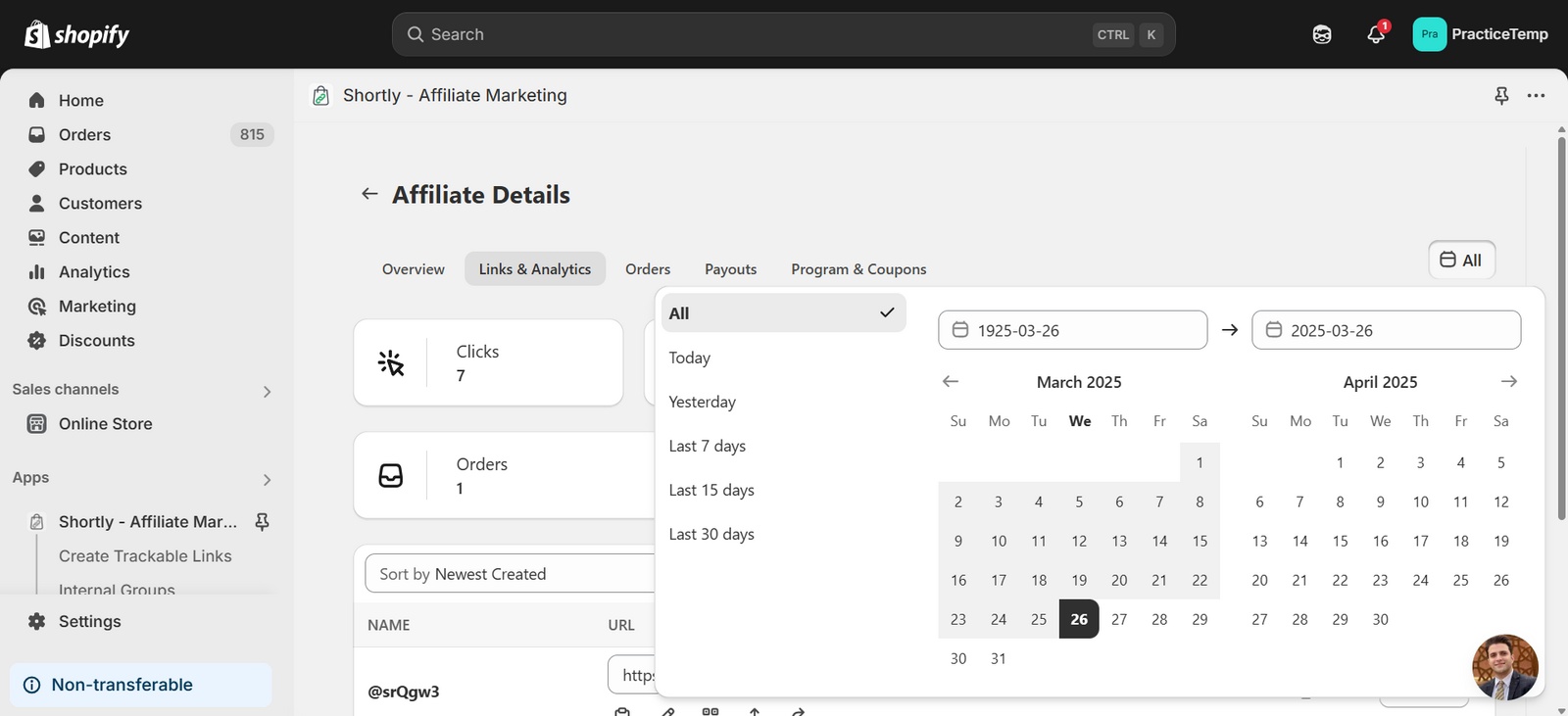
🔗 Links & Analytics

Metrics Tracked:
- Clicks
- Product Views
- Add To Cart
- Checkouts
- Orders
- Total Revenue
- Average Order Value

Link Table Columns:
Column | Description |
|---|---|
Name | Custom alias/note |
URL | Trackable link |
Clicks | Clicks count |
Orders | Orders from link |
Revenue | Sales value |
Notes | Extra details |
Link Actions:
- Copy URL
- Edit link
- Download QR
- Export CSV
- Reset analytics
- View details

Details View Includes:
- Revenue breakdown
- Sold products (with pie chart)
- Traffic insights (visitors, devices, referrers)

Revenue Details
See a visual graph and stats of total:
- Clicks
- Orders
- Revenue
- Shipping & Taxes
- Products Sold

Sold Products
Shows a product breakdown for what the influencer has sold:
- Product Title
- Quantity Sold
- Pie chart visualization

Traffic Insights
Get a deep dive into:
- Visitors & Pageviews
- Top visited product pages
- Countries, Browsers, OS
- Activity timeline and referrers

Export CSV
Need a CSV? Click the Export button to download all affiliate link data.

⚙️ Settings Menu
Toggle analytics columns:
- Name, URL, Clicks, Orders, Revenue
- Pageviews, Add to Cart, Checkout
- Conversion Rate, Notes, Actions

📆 Orders Tab

Field | Description |
|---|---|
Order No. | Shopify order number |
Date | Order date/time |
Referral URL | Link used |
Total | Order value |
Commission | Earned amount |
Commission Rule | Commission logic |
Status | Commission status |
💰 Payout Tab

Manage influencer payments here.
Column | Description |
|---|---|
Influencer Name | Recipient of payout |
Amount | USD payout value |
Payment Method | PayPal, Bank, Manual, etc. |
Payout Date | Date processed |
Status | Paid or Pending |
Notes | Optional remarks |
Action | Edit/view |
Payout Totals Summary:
- PayPal Payouts
- Manual Payments
- Bank Transfers
🏠 Program & Coupons Tab

🛠️ Program Info
- View/edit affiliate's program
- Click Change Program to assign another


🎟️ Coupons
- Enter coupon code > Click Add
- Coupons show with edit/delete options
- Click Create Coupon to make one in Shopify
🔗 Signup Link
- Copy the unique signup link
- Share, embed, or email it for onboarding
Updated on: 05/06/2026
Thank you!